
Tips for getting started with AKS e-Learning
|
AluKönigStahl e-Learning is our and your personal internal platform for learning and accessing all of our knowledge. After you log in with your username* (e.g. Martin.Hir) and your registration password, the main window will automatically display Neu/Update/Recommendations | Detail Overview | My successes For the most detailed overview of all courses, click on Detail Overview, where you can view all topics in general or in detail by The function Neu/Update/Recommendations and My Successes are explained below. |
 |
| Just click through; the entries and the search function are self-explanatory. | |
| Now let's talk about the features |
| Neu/Update/Recommendations | Detail overview | My successes |
| Neu/Update/Recommendations |
| Icon fields for courses appear here, and you can move them to the right or left. |
|
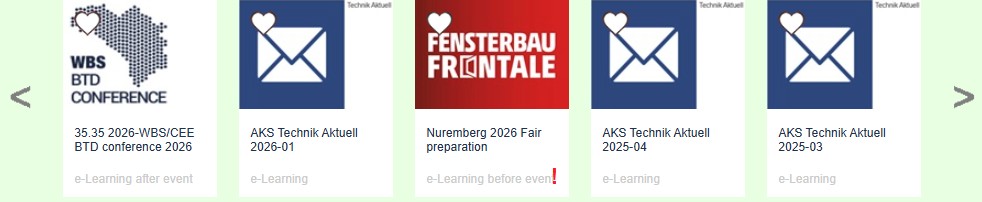 |
| - Here you can see courses that have been published within the last 4 months as new releases or comprehensive revisions. The icon fields link directly to the respective course - If you see an exclamation mark next to the icon, the course is mandatory for you. Please work through it. - The heart icon serves as a “Like” button if you particularly enjoy the course or find it relevant. - Between the image and the text, a bar shows your current performance and progress on the course quizzes and tests. The narrow bar appears as soon as at least one quiz or test is available in the course. |
| Proceed |
| - In this menu, you will find all courses for which you have submitted a quiz or test and achieved a score of 90% or less on the overall progress. |
| Recommendations |
| - This menu displays the courses that the company considers relevant to your job role. The departments within our organization were assigned different target groups for this purpose. (VKA, VKI, BTD ...). We have also divided them into Business Units (Schüco ALU, Schüco PVC, Jansen, Steel, Sun Protection) |
| Detail overview |
|
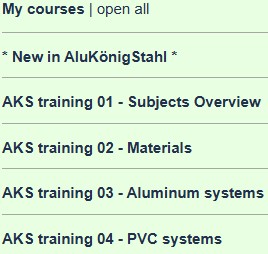
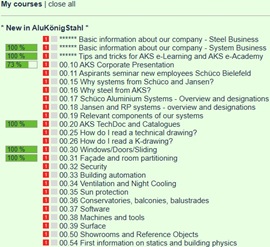
Here, the list is initially displayed by all course groups. You can select a course either here without filtering by icon, or under “New/Update/Recommendations.” |
| Detail overview |
  |
| My successes |
|
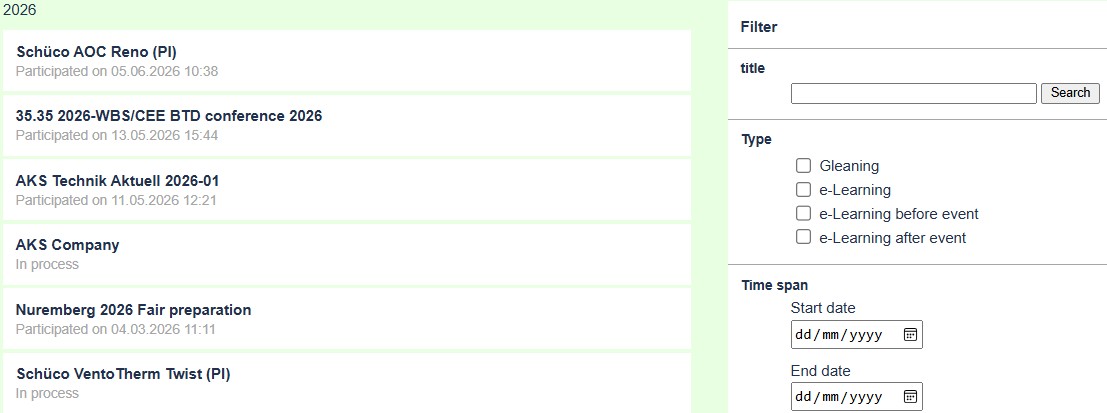
lists on the left side, by year, all courses that you have personally taken Participated ... means the course was launched without quizzes or tests In process ... means that at least one quiz or test has been submitted Finished ... means that all quizzes/tests assigned to your role have been answered at a rate of 90% or higher.
For those who are particularly interested, there is a filter option on the right to sort by “Title,” “Type,” or “Time span”. |
| My successes |
 |